Showing posts with label Tips. Show all posts

25 February 2016

[Latest] Install Android 6 - Marshmallow on Sony Xperia L, Z | Samsung | Any Mobile

I'm presenting here few basic steps to install latest Android 6 - Marshmallow developer preview on Sony Xperia L (Device code Taoshan)

Same steps works for Sony Xperia Z and Samsung mobiles with high configuration.

Disclaimer: kvGropu4all. is not responsible for any damages caused directly or indirectly by a following guide. Any action you do for your Android device must be done only under your responsibility. Unlocking bootloader and rooting device voids warranty of your device. Please take backup of your "all important data" before proceeding with any steps. Because it will completely wipe your personal data from internal storage.

1. Unlock bootloader - if not already unlocked.

First of all you need to have boot loader unlocked for your device.
Follow this official guide to unlock bootloader

I prefer Official Guide to unlock bootloader

2. Root your device.
After unlocking bootloeader you have to root your phone and install any recovery manager. I prefer CWM (ClockworkMod)

Download this zip. and extract on your windows pc. Make sure you have drivers installed and connected phone with good USB cable. (In most cases failure happens with damaged USB cables)

Run install.bat

it will detect your connected phone and install CWM Recovery and Root your device.

After restart you may want to verify root access. Just install come root checker (lot of available on play store, just install any one and check it).

3. Installing Android 6 - Marshmallow on Sony Xperia

Download Android 6 - Marshmallow (initial release) and GoogleApps Package for Android 6 Marshmallow, and copy to your memory card so that we can install from it.

Step 1: Go to Recovery mode- on Xperia L to go to recovery mode, you need to power off phone first. Then press power button and then press Volume Up button for few times (until it vibrates phone two-three times). There you are, it will present you with CWM Recovery manager.

Step 2: Once in CWM Recovery, choose “wipe data/factory reset”.  This will erase all of your settings, apps, app data, and everything except for your personal photos, videos, and files in your internal storage.  (Does not touch external storage.)

(This step is optional if you are installing a custom ROM that is based on the same/newer firmware but I usually recommend to do it unless you are installing an updated version of the same ROM you are running.)

Step 3: Go back to main menu and choose “install zip”.

Step 4: Choose “choose zip from /sdcard” or “choose zip from /external_sd” depending on where you put your ROM zip files.  (/sdcard = internal storage, /external_sd = microSD card)

Step 5: Next browse your file system and file the ROM zip file you want to install and install it.

Step 6: Similarly install gapps (GoogleApps) package from external card.

Step 7: Reboot your phone.

Step 8: Keep clam, first reboot may take up to 10 minutes (yeah, its too much, but it took that for me at-least) - If you got into bootloop, don't worry, just reboot into recovery and do clean cache and clean dalvik cache.

Step 9: Hurry, you are now enjoying Android 6 - Marshmallow on your Sony Xperia L.

For more details and any issues visit: [XDA Developers Thread]


14 November 2014

What is Bitcoin and how to get free Bitcoin every hour?

Bitcoin is a form of digital currency, created and held electronically. No one controls it. Bitcoins aren’t printed, like dollars or euros – they’re produced by lots of people running computers all around the world, using software that solves mathematical problems. It’s the first example of a growing category of money known as cryptocurrency.


What makes it different from normal currencies?

Bitcoin can be used to buy things electronically. In that sense, it’s like conventional dollars, euros, or yen, which are also traded digitally.
However, bitcoin’s most important characteristic, and the thing that makes it different to conventional money, is that it is decentralized. No single institution controls the bitcoin network. This puts some people at ease, because it means that a large bank can’t control their money.

Who created it?

A software developer called Satoshi Nakamoto proposed bitcoin, which was an electronic payment system based on mathematical proof. The idea was to produce a currency independent of any central authority, transferable electronically, more or less instantly, with very low transaction fees.

Who prints it?

No one. This currency isn’t physically printed in the shadows by a central bank, unaccountable to the population, and making its own rules. Those banks can simply produce more money to cover the national debt, thus devaluing their currency.
Instead, bitcoin is created digitally, by a community of people that anyone can join. Bitcoins are ‘mined’, using computing power in a distributed network. This network also processes transactions made with the virtual currency, effectively making bitcoin its own payment network.

So you can’t churn out unlimited bitcoins?

That’s right. The Bitcoin protocol – the rules that make bitcoin work – say that only 21 million bitcoins can ever be created by miners. However, these coins can be divided into smaller parts (the smallest divisible amount is one hundred millionth of a bitcoin and is called a ‘Satoshi’, after the founder of bitcoin).

What is it based on?

Conventional currency has been based on gold or silver. Theoretically, you knew that if you handed over a dollar at the bank, you could get some gold back (although this didn’t actually work in practice). But bitcoin isn’t based on gold; it’s based on mathematics.
Around the world, people are using software programs that follow a mathematical formula to produce bitcoins. The mathematical formula is freely available, so that anyone can check it. The software is also open source, meaning that anyone can look at it to make sure that it does what it is supposed to.

What are its characteristics?

Bitcoin has several important features that set it apart from normal fiat currencies.

1. It's decentralized

The bitcoin network isn’t controlled by one central authority. Every machine that mines bitcoin and processes transactions makes up a part of the network, and the machines work together. That means that, in theory, one central authority can’t tinker with monetary policy and cause a meltdown – or simply decide to take people’s bitcoins away from them, as the Central European Bank decided to do in Cyprus in early 2013. And if some part of the network goes offline for some reason, the money keeps on flowing.

2. It's easy to set up

Conventional banks make you jump through hoops simply to open a bank account. Setting up merchant accounts for payment is another Kafkaesque task, beset by bureaucracy. However, you can set up a bitcoin address in seconds, no questions asked, and with no fees payable.

3. It's anonymous

Well, kind of. Users can hold multiple bitcoin addresses, and they aren’t linked to names, addresses, or other personally identifying information. However…

4. It's completely transparent

…bitcoin stores details of every single transaction that ever happened in the network in a huge version of a general ledger, called the block chain. The block chain tells all. If you have a publicly used bitcoin address, anyone can tell how many bitcoins are stored at that address. They just don’t know that it’s yours. There are measures that people can take to make their activities more opaque on the bitcoin network, though, such as not using the same bitcoin addresses consistently, and not transferring lots of bitcoin to a single address.

5. Transaction fees are miniscule

Your bank may charge you a £10 fee for international transfers. Bitcoin doesn’t.

6. It’s fast

You can send money anywhere and it will arrive minutes later, as soon as the bitcoin network processes the payment.

7. It’s non-repudiable

When your bitcoins are sent, there’s no getting them back, unless the recipient returns them to you. They’re gone forever.
So, bitcoin has a lot going for it, in theory. But how does it work, in practice? Read more to find out how bitcoins are mined, what happens when a bitcoin transaction occurs, and how the network keeps track of everything.

How to get Bitcoin free for every hour?

Well, it feels weird yet its true. Yes, you can get Bitcoin for free by visiting site every hour. There is a website  Freebitcoin which gives you free Bitcoin.  Try this out :) 


11 November 2014

10 awesome driving and travelling hacks for drivers.

#1 I see you

But I shouldn't see myself. Got it.


#2 Heat Wave

Now if only you didn't look so stupid while you did this...

#3 Last Drop

How come they don't teach this in driver's ed?

#4 Car Sick

Now if only we all looked that happy when we were car sick.

#5 Naptime

And it only costs $2.

#6 Holster

Yes Officer, this IS hands-free!

#7 Dude, Where's my...

What did we ever do without Google Maps?

#8 Kids Driving You Crazy?

A spot for every stinkin' toy!

#9 Right or Left

Makes too much sense to be that easy.


#10 Audio Upgrade

It's a perfect fit, lol !


02 May 2013

Shift Your Business to a Dedicated Server to Boost its ROI


Business growth calls for more online space so that you can have adequate means to run your business smoothly. In order to offer an uninterrupted service to your clients or customers you need to be proactive and make sure that you opt for the best option. This is where managed dedicated servers play a pivotal role.  However choosing one is not that easy a task. In this article we will provide a few tips on how to find a good dedicated server.


The 4 Most Important Things to Focus on While Choosing a Perfect Plan

  1. The very first thing that should be taken into consideration is that whether you are looking for a managed or unmanaged server or hosting. Wondering where’s the difference? Well the prime difference is in an unmanaged server you will get no technical help from the service provider and you will have to keep an eye on the entire thing. On the contrary if you have opted for the service of a managed server the service provider, then you will be able to get professionals help in case of any technical glitches.
  2. Choosing the correct size plays a pivotal role as will. A server that does not offer much space might lead you to trouble when your business flourishes. On the other opting for a server with plenty of space will imply wastage of money. So, entrepreneurs or business honchos need to be circumspect and take the size of their website into consideration before taking the final call.
  3. The operating system is an important thing to consider. It is said that Linux is a better option to go for when it comes to servers. However there is still no valid evidence that can establish its legitimacy. So, one can choose anyone out of Linux and Windows. Even if a Linux based server is attached to a Windows server then too it will function smoothly. Hence, it can be aptly said that choosing an OS is your free will.
  4. One also needs to keep the budget factor in mind because to be candid managed dedicated servers will be costlier. The final or the net cost will however depend on a few things such as the size of the server and the bandwidth you need.  So, those reeling under a strict budget should give a second though to it. Experts however say that such a server will do a world of good to your business.

The Process of Switching over to a Dedicated Server

The process of switching over to a dedicated server is a bit intricate and involves a considerable amount of time. This however can be done by hiring professionals. So once again it needs to be said that the respective entrepreneur should decides whether making such a move will be helpful for the business or not.
On  a concluding note it can be said that even in the backdrop of such a financial turmoil where all businesses are looking to cut on their business expenses, opting for a dedicated server might make you spend some more but will definitely provide you a great return.

Web Design Tips for Better Usability


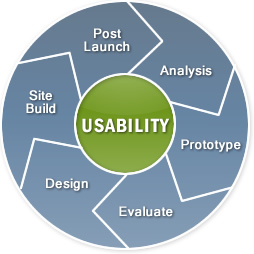
Website usability is a big issue for developers and users. Your website needs to be as user friendly as possible. If your visitors become frustrated trying to find the information they need, they will click off your website and a conversion opportunity is lost. Here are 10 web design tips for better usability.

Tap Into How People Read a Website

  • Two studies done by Dr. Jakob Neilson and the marketing firms Did-it and Enquiro have shown people scan websites in a F shaped pattern. This is also known as the Google Golden Triangle. Most people start in the top left corner and scan down and to the right while viewing website. Concentrate your most important information in this area.
  • Studies have also shown people only read about 28% of the text on a page. This means your content has to be golden and you need to get your point across quickly.
  • Most people read webpages from left to right. This means if you use sidebars place them on the left side. If your page is in Hebrew or another language that reads from right to left, this should be reversed.

The Look of Your Website Matters

  • Make use of white space to make your text more readable. Studies have shown that the use of white space not only makes your website look cleaner, but increases reader comprehension.
  • If you must go past the fold, use less content above the fold. This encourages readers to scroll down and will keep them on your webpage.
  • Pay attention to small details. The font and color of a button can sometimes mean a conversion or a click through. Instead of the annoying 404 message, try a polite two to three sentence message and a search option.

The Performance of Your Website

  • Your website needs to load quickly on all devices. Mobile users are just that, mobile. They don’t have time to wait for your website full of graphics and flash to load on their devices. Test out your website loading times on several devices to be sure it loads quickly.
  • Make sure your links are up to date. If you make revisions on your website, you’ll need to check the links to be sure they are still active.
  • Park a tool bar at the top of the page. As they scroll down the tool bar stays on top of the page. This will make sure your visitors can navigate your site easily. Also don’t overuse the search option. It is better to have good navigation than to rely on a search box.
  • Make sure your landing pages are optimized. A study by Gerry McGovern showed in 2010 only five percent of conversions originated from your home page. By having the right SEO on each landing page your pages will show up in search results. This will drive traffic to landing pages and your conversion rates will increase.
These are 10 web design tips for you to use to increase your website’s usability. Your website needs to be attractive, easy to read, and easy to use. Don’t ignore the details and just concentrate on the big picture,all of the elements of your website work together to increase usability.

09 January 2012

Rename Multiple Files Using Excel or Google Docs


Renaming multiples files on your Windows computer is easy. Select all the files, press F2 and type some descriptive text. Windows will append a unique sequence number to each of the file names.
That's a fairly quick solution but not very flexible because you don't get to specify any choices or criteria.
For instance, how do you append the current date to the filename ? Or you want to replace only certain words in the file names (like a spelling error)? Or you want files to follow a different renaming system like file-A.jpg instead of the default file(1).jpg.
To rename files in bulk more efficiently, you can either learn some complex shell scripting language (SED, AWK, Perl) or switch to something more simple  - a spreadsheet.
 
 Step 1: Type cmd and switch (using "cd" command) to the directory that contains the files you want to rename in bulk.
Step 2: Type "dir /b" to see a skeleton list of all files in the current directory. Copy that file list to the clipboard by selecting Mark from the contextual menu.
Step 3: The fun starts now. Fire your copy of Microsoft Excel or Google Docs Spreadsheets and paste those file names into the first spreadsheet column.
Step 4: In the blank adjacent column, add a corresponding Excel function - for instance, use SUBSTITUTE to change specific text in the filenames, use CONCATENATE() with DATE() if you want to add date to the filename, etc.
*For more complex criteria, you may want to put the file extensions in a separate column by splitting the file name using period (.) as the delimiter.
Step 5: Your source filenames are now in column A while the Destination files are in column B - we will now convert this into a DOS rename command.
In Column C, type the following Excel formula and your command is ready to be executed.
=CONCATENATE("ren ",A1, " ", B1)
Copy paste the same formula across all cells in column C for which you have corresponding values in Column A or B.
We are almost done. Copy all the values from column C to the clipboard and paste them inside the DOS window or better still, put them inside a new text file and give it a name like rename.bat.
 Execute and all files that match the criteria are renamed instantly...

23 December 2011

How to get laptop battery efficiency in windows


If you have a laptop that runs Windows 7,you can test how efficient it is by using the efficiency calculator.The calculator generates loads of useful information about power consumption and can give you an idea of how to boost your battery life and overall performance.To get to the efficiency calculator, you need to open a command prompt as administrator by typing ‘cmd’ (without the quotes) from the Start menu.

When the cmd icon appears, right-click it and choose ‘Run as administrator’. Now type in ‘powercfg -energy’ (without quotes)and hit Enter. Windows 7 will now scan your system looking for ways to improve power efficiency. It will then publish the results in an HTML file, usually in the System32 folder. Just follow the path it gives you to find your report
.

Popular Posts