Showing posts with label Tricks. Show all posts

25 February 2016

[Latest] Install Android 6 - Marshmallow on Sony Xperia L, Z | Samsung | Any Mobile

I'm presenting here few basic steps to install latest Android 6 - Marshmallow developer preview on Sony Xperia L (Device code Taoshan)

Same steps works for Sony Xperia Z and Samsung mobiles with high configuration.

Disclaimer: kvGropu4all. is not responsible for any damages caused directly or indirectly by a following guide. Any action you do for your Android device must be done only under your responsibility. Unlocking bootloader and rooting device voids warranty of your device. Please take backup of your "all important data" before proceeding with any steps. Because it will completely wipe your personal data from internal storage.

1. Unlock bootloader - if not already unlocked.

First of all you need to have boot loader unlocked for your device.
Follow this official guide to unlock bootloader

I prefer Official Guide to unlock bootloader

2. Root your device.
After unlocking bootloeader you have to root your phone and install any recovery manager. I prefer CWM (ClockworkMod)

Download this zip. and extract on your windows pc. Make sure you have drivers installed and connected phone with good USB cable. (In most cases failure happens with damaged USB cables)

Run install.bat

it will detect your connected phone and install CWM Recovery and Root your device.

After restart you may want to verify root access. Just install come root checker (lot of available on play store, just install any one and check it).

3. Installing Android 6 - Marshmallow on Sony Xperia

Download Android 6 - Marshmallow (initial release) and GoogleApps Package for Android 6 Marshmallow, and copy to your memory card so that we can install from it.

Step 1: Go to Recovery mode- on Xperia L to go to recovery mode, you need to power off phone first. Then press power button and then press Volume Up button for few times (until it vibrates phone two-three times). There you are, it will present you with CWM Recovery manager.

Step 2: Once in CWM Recovery, choose “wipe data/factory reset”.  This will erase all of your settings, apps, app data, and everything except for your personal photos, videos, and files in your internal storage.  (Does not touch external storage.)

(This step is optional if you are installing a custom ROM that is based on the same/newer firmware but I usually recommend to do it unless you are installing an updated version of the same ROM you are running.)

Step 3: Go back to main menu and choose “install zip”.

Step 4: Choose “choose zip from /sdcard” or “choose zip from /external_sd” depending on where you put your ROM zip files.  (/sdcard = internal storage, /external_sd = microSD card)

Step 5: Next browse your file system and file the ROM zip file you want to install and install it.

Step 6: Similarly install gapps (GoogleApps) package from external card.

Step 7: Reboot your phone.

Step 8: Keep clam, first reboot may take up to 10 minutes (yeah, its too much, but it took that for me at-least) - If you got into bootloop, don't worry, just reboot into recovery and do clean cache and clean dalvik cache.

Step 9: Hurry, you are now enjoying Android 6 - Marshmallow on your Sony Xperia L.

For more details and any issues visit: [XDA Developers Thread]


03 May 2014

Root any android phone without using PC

Now no need of pc to root android phones.
No more need to go to recovery mode. U can root your android phone in just one click!!!


Steps 

Just Download the app attached below.

Just select super su or super user

Press the button below

If it shows SUCCESS Thn ur phone is rooted thn reboot

Download .apk


LEGAL CONDITIONS

kvGropu4all is not responsible for any damages caused directly or indirectly by a rooting guide. Any action for rooting your Android device must be done only under your responsibility.

Advantages of Rooting

First and foremost, rooting allows the customizations since like it allows the installation of Custom ROMs in the phone.
Allows you to convert file systems from the laggy RFS to the speedy EXT4,
Allows you to remove the system apps which come by default with the phone,
Allows you to apply lots of other customizations

Disadvantages of Rooting

The only disadvantage of rooting is that it voids the warranty but it can be reclaimed if you up.


Compatibility for Qualcomm devices (Gandalf exploit only) :
  • Asus Padfone 1/2
  • Asus Padfone Infinity
  • Asus Transformer Pad Infinity TF700KL
  • BW T18+ (Fortis Evo)
  • Cloudfone Thrill 430x
  • Disgo 8400g
  • DNS S4504/S4503/S4502
  • FAEA F1
  • Gigabyte GSmart G1315 Skate
  • Gigabyte GSmart Rio R1
  • Google Nexus 4
  • Highscreen Spark/OMEGA Q/Blast/Strike/Boost
  • HTC One S
  • Huawei Honor Pro (U8950-1)
  • Huawei U8815/U8816 Ascend G300/G301
  • Huawei U8825D Ascend G330D
  • Karbonn Titanium S5
  • Kyocera Torque
  • Lenovo S870E
  • LG Nitro HD
  • LG L7 II P710/P714/P715
  • LG Optimus F5 (P875)
  • LG Optimus G E970/E975
  • LG Optimus L3 II E425
  • LG Optimus L5 E610/612/615
  • LG Optimus L7 II P710/P713/ P714/P715
  • LG Optimus L7 P700/Р705
  • LG Optimus LTE 2
  • MEDION LIFE P4013
  • Micromax A111 Canvas Doodle
  • Oppo Find 5
  • Orange Nivo
  • Pantech Discover
  • Pantech IM-A840S Vega S5
  • Samsung Galaxy Win I8552
  • Sharp Aquos Phone SH930W
  • Sony Xperia E C1505/Dual C1605
  • Sony Xperia L C210X
  • teXet TM-3204R
  • teXet TM-4677
  • Xiaomi Mi-2S
  • ZTE V880G/ZTE V955
  • Waiting feedbacks ...

Compatibility for MTK devices (Boromir exploit only) :
  • Alcatel OT 4030D S'POP
  • Alcatel OT 8008D Scribe HD
  • Alcatel OT 997D
  • Alcatel OT Idol 6030X/6030D/6030H
  • Amoi N828
  • ASUS Memo Pad HD 7
  • Chinese Star S7589
  • DAXIAN XY100S
  • Explay HD Quad
  • Explay infinity II
  • Explay Polo
  • Explay Surfer 7.32 3G
  • Explay Surfer 8.31 3G
  • Fly IQ440 Energie
  • Fly IQ441 Radiance
  • Fly IQ442 Miracle
  • Fly IQ443 Trend
  • Fly IQ446 Magic
  • Fly IQ450 Quattro Horizon 2
  • Fly IQ451
  • GoClever Fone 570Q
  • Haipai I9389
  • Highscreen Alpha GTX
  • HKC Q79 3G
  • Huawei U8836D G500 Pro
  • IconBIT NetTAB Space 3G Duo
  • iOcean X7
  • Jiayu G2
  • Jiayu G3S
  • Jiayu G4
  • KENEKSI Beta
  • Lava iris 405
  • Lenovo IdeaPhone P700i
  • Lenovo IdeaPhone S720
  • Lenovo IdeaTab A3000-H
  • Lenovo IdeaTab S6000-H
  • Lenovo P770
  • Lenovo S820, S920, A390
  • Micromax Canvas HD
  • Motorola RAZR D3
  • Newman N1
  • Oppo findway U7015
  • OUMEI X5
  • Philips W536
  • Philips W736
  • Prestigio MultiPhone 4055
  • Prestigio MultiPhone PAP 4505DUO
  • Sharp AQUOS SH837W
  • Star S5 Butterfly
  • TeXet NaviPad TM-7055HD
  • Texet TM-5277
  • THL V12
  • THL W100 (130711)
  • THL W200
  • ZOPO C2 Platinum
  • ZOPO ZP 910
  • ZOPO ZP300+
  • ZOPO ZP900 Leader
  • ZTE V880G/H
  • ZTE V987 Grand X Quad
  • Waiting feedbacks ...

Compatibility for Huawei K3V2 devices (Pippin exploit only) :
  • Waiting feedbacks ...

Compatibility for Samsung devices (Legolas and Aragorn exploits only) :
  • Samsung Galaxy Core GT-I8262
  • Samsung Galaxy Proclaim S720C
  • Samsung Galaxy Young GT-S6312/GT-S6310
  • Samsung Lightray SCH-R940
  • Waiting feedbacks ...

Compatibility for Exynos devices (Sam, Frodo, Legolas and Aragorn exploits only) :
  • AT&T Galaxy Note 2 SGH-I317
  • Highscreen Explosion
  • Hyundai T7s
  • Impression 9702 (Exynos 4412)
  • Lenovo K860/К860i
  • Newman N2
  • Meizu MX2
  • Samsung Galaxy Camera EK-GC100
  • Samsung Galaxy Note 10.1 GT-N8000, GT-N8010, GT-N8013, GT-N8020
  • Samsung Galaxy Note 2 GT-N7100
  • Samsung Galaxy Note 2 LTE GT-N7105
  • Samsung Galaxy Note 8.0
  • Samsung Galaxy Note GT-N7000
  • Samsung Galaxy S GT-i9000
  • Samsung Galaxy S2 AT&T SGH-I777
  • Samsung Galaxy S2 Epic 4G Touch - SPH-D710
  • Samsung Galaxy S2 GT-I9100
  • Samsung Galaxy S3 GT-I9300
  • Samsung Galaxy S3 LTE GT-I9305
  • Samsung Galaxy Tab Plus GT-P6200/GT-P6210
  • Samsung Galaxy Tab 7.7 GT-P6800/GT-P6810
  • Samsung SGH-i997 Infuse 4G
  • T-Mobile Galaxy Note 2 T-889
  • Verizon Galaxy Note 2 SCH-I605
  • iBerry Auxus CoreX2 3G and CoreX4 3G

Compatibility for Omap36XX devices (Gimli exploit only) :
  • Archos Gen8
  • Cliq 2 MB611
  • Coolpad Quattro 4G
  • Droid 2 (a955)
  • Droid 2 Global (a956)
  • Droid X (MB810)
  • LG Marquee LS855
  • LG P970 Optimus Black
  • Motorola DEFY+ (MB525 / MB526)
  • Motorola Droid PRO
  • Motorola Droid X
  • Motorola XPRT
  • Parrot ASTEROID Smart
  • R2D2 (a957)

Note:- It also works on all Karbonn Devices..Karbonn A25 Rooted Successfully


02 May 2014

Trick to shorten MySQL error message

The steps provided here are only for Linux, If you are using some other OS then use respective editor and commands.
MySQL stores error message file at /usr/share/mysql/english/errmsg.sys where english is the language you want to use.
Note:You need to have super user privileges
Step 1. Take backup of existing errmsg.sys (so that you can revert if some problem occured
$sudo cp /usr/share/mysql/english/errmsg.sys ~/errmsg.sys.bkp
Step 2. Open /usr/share/mysql/english/errmsg.sys in vi editor.
$sudo vi /usr/share/mysql/english/errmsg.sys
Step 3. Search for "You have an" in errmsg.sys
in vi editor for searching try this way-->  /You have an [press enter]
It will get you to the string "You have an error...." as show in screen-shot 

Step 4. Edit that error message as per your need. I've deleted string You have an error in your SQL syntax; check the manual that corresponds to your MySQL server version for the and kept just right syntax to use
Refer below screen-shot. 

Step 5. Save and Exit.
in vi editor to save and exit-->   :x! [press enter]     here ! is added to override read-only file
Step 6. Restart mysql service.
$sudo mysql restart
step 7. check error message (I'm checking in phpMyAdmin)

08 January 2013

A New Way to Publish your Shared Folders on the Web

File hosting services like Dropbox and Google Drive have made it easy for anyone to distribute files through Shared Folders. You can upload a file to your shared folder and that file is instantly available to all other people with whom you have shared that folder. In the case of Google Drive, you can even create “public” shared folders where your files can be viewed by anyone on the web.

The problem is how do you keep people in the loop when you add new files to a shared folders. Also, the less tech-savvy crowd may still prefer to receive these shared files as email attachments instead of using Dropbox or Google Drive.


iBeam.it, a new web service from Wappolf, is trying to solve this problem in an interesting way. Here you can put your files on Google Drive or Dropbox as before and the files are instantly “beamed” to other users who are watching your shared folder.
To get started, you just have to connect any of your Dropbox or Google Drive folder with iBeam.it (it uses OAuth). The folder get a unique URL that others can use to follow your folder (see this sample folder).

The “followers” are unaware of the service that you are using to host your files and they may choose to “receive” them inside Google Drive, Dropbox, Evernote, SkyDrive, Box and other popular services. Alternatively, they may choose to follow your Shared Folder through email and in that case, they will get your files as email attachments.
The service is free though you are only allowed to beam files up to 25 MB in size. Most email programs won’t handle attachments that large anyway. Also, sharing is one way – if you delete a file from the shared folder, it won’t be deleted from the folders of other users.
Similar things can possibly be done through IFTTT but iBeam.it is super-easy and doesn’t even require you to create an account.

Remotely Send Web Pages to your Mobile Device


Framote is new tool that helps you share “live” URLs that can be controlled remotely.
To get started, you can specify any website – say cnn.com – and Framote will create a unique URL for that site. You can share that URL with a group of people and everyone will see the same website on their screens. If you update the underlying website at your end, all the other screens are refreshed automatically.
The service is especially useful for testing responsive designs. You can have the main website on your desktop computer and load the corresponding Framote URLs on your tablets and mobile phones. If you open a different page on your desktop, the mobile screens are updated automatically.
Internally, Framote embeds the source website into an IFRAME and makes an AJAX request to check the actual URL every few seconds. If the source URL has been modified, the IFRAME’s source attribute on the client’s screen is updated almost instantly. The Framote dashboard will also show list of IP address and devices that are accessing your unique URL.

11 January 2012

Create Unlimited Virtual Drives in your Computer


Today i'm going to share a simple and may b an obsolete trick..
So today i will tell you all how to make your own drive on your System.

... To have one simply follow these steps:-
Step 1:Go to c drive, type cd c: (or any another drive from which you want to create new drive)

Step 2:Create a new folder say kvgroup (it is your directory to where your data will be stored from virtual drive)

Step 3:Go to command prompt and type subst z: c:\kvgroup
(z: is the name of new drive, c:\kvgroup is the location and name of the directory you created in Step 2.)
same way you can create lots of drives for any folder if you want... 
To remove the virtual drive

go to command prompt and type

subst z: /d


09 January 2012

Rename Multiple Files Using Excel or Google Docs


Renaming multiples files on your Windows computer is easy. Select all the files, press F2 and type some descriptive text. Windows will append a unique sequence number to each of the file names.
That's a fairly quick solution but not very flexible because you don't get to specify any choices or criteria.
For instance, how do you append the current date to the filename ? Or you want to replace only certain words in the file names (like a spelling error)? Or you want files to follow a different renaming system like file-A.jpg instead of the default file(1).jpg.
To rename files in bulk more efficiently, you can either learn some complex shell scripting language (SED, AWK, Perl) or switch to something more simple  - a spreadsheet.
 
 Step 1: Type cmd and switch (using "cd" command) to the directory that contains the files you want to rename in bulk.
Step 2: Type "dir /b" to see a skeleton list of all files in the current directory. Copy that file list to the clipboard by selecting Mark from the contextual menu.
Step 3: The fun starts now. Fire your copy of Microsoft Excel or Google Docs Spreadsheets and paste those file names into the first spreadsheet column.
Step 4: In the blank adjacent column, add a corresponding Excel function - for instance, use SUBSTITUTE to change specific text in the filenames, use CONCATENATE() with DATE() if you want to add date to the filename, etc.
*For more complex criteria, you may want to put the file extensions in a separate column by splitting the file name using period (.) as the delimiter.
Step 5: Your source filenames are now in column A while the Destination files are in column B - we will now convert this into a DOS rename command.
In Column C, type the following Excel formula and your command is ready to be executed.
=CONCATENATE("ren ",A1, " ", B1)
Copy paste the same formula across all cells in column C for which you have corresponding values in Column A or B.
We are almost done. Copy all the values from column C to the clipboard and paste them inside the DOS window or better still, put them inside a new text file and give it a name like rename.bat.
 Execute and all files that match the criteria are renamed instantly...

08 January 2012

Identifying Files that don’t have an Extension


If a file doesn’t have an extension, you can still identify the format of that file from its signature. All known file types have a standard and unique signature and this data is stored in the file itself. There are programs that can read this signature and determine the file format even if the extension is missing from the file name.


The most popular program in the category of file identifiers is TrIDNet. First download and unzip the TrIDNet utility and the associated XML definition files in the same directory. Then open the TrIDNet.exe file, press the “Rescan Defs” button to load the file signatures (you only need to do this once) and then drag-drop any unknown files that you wish to analyze.
It will show the different file types that match with the file’s signature. Do remember to rename the files after identification (press F2, prefix a dot with the extension).

Password for .zip or .rar is => kvgroup4all

03 January 2012

Remove Computer Virus in USB using DOS command

Removing computer virus in USB is really difficult especially if we don't have an updated anti-virus software installed to our computer. Viruses will easily attack the computer and infect all the system files or even our personal files that are stored on this computer if we don't have an antivirus. Since, the license of an antivirus software is very expensive, here the simplest way to solve this problem(computer virus in flash drive or usb).

The "simplest way or steps to remove computer virus in USB using CMD or DOS commands".

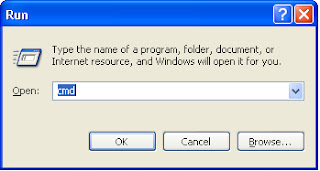
1. Click start button and click Run.
2. Type CMD in the dialog box and Click OK.
computer virus on usb,remove using cmd command
     
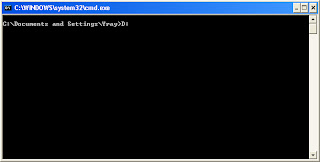
   3. Type your Drive Letter for your USB and Press Enter in your keyboard, mine is D:
simplest way to remove virus on usb, using dos commands 


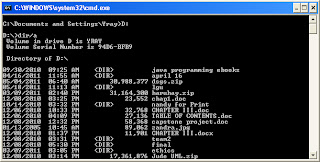
    4. Type dir/a to see all the hidden files inside your usb,also look the autorun.inf file. press enter key.

delete computer virus in usb or flash disk using commands in dos
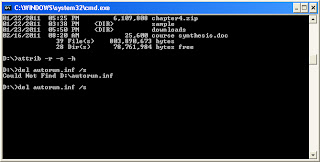
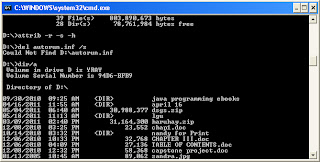
   5. You type this command, attrib -r -a -s -h in the command prompt or cmd to show all the hidden files.  Then press enter.
deleting virus in computer using cmd command
  6. Type del autorun.inf /s to delete the virus. Press enter after you type.

delete or remove autorun.inf using commands in windows

 7. Type again this command, dir/a to check whether the auturun.inf is already deleted.

steps to remove computer virus inside usb

Thank you for reading this post....

23 December 2011

How to get laptop battery efficiency in windows


If you have a laptop that runs Windows 7,you can test how efficient it is by using the efficiency calculator.The calculator generates loads of useful information about power consumption and can give you an idea of how to boost your battery life and overall performance.To get to the efficiency calculator, you need to open a command prompt as administrator by typing ‘cmd’ (without the quotes) from the Start menu.

When the cmd icon appears, right-click it and choose ‘Run as administrator’. Now type in ‘powercfg -energy’ (without quotes)and hit Enter. Windows 7 will now scan your system looking for ways to improve power efficiency. It will then publish the results in an HTML file, usually in the System32 folder. Just follow the path it gives you to find your report
.

Popular Posts